KlikCloser is a conversation card game for two: partners, friends, or family. You pick a deck, put the phone between you, and take turns reading the cards out loud.
The app works offline and keeps your answers on your device. There is no account, no feed, and no streak to maintain.
This guide follows the Android app in English. Every screen is also available in nine other languages, and the steps stay the same.
Your first 5 minutes
Open the app and choose your language.
Tap Start a Session, pick Partner, Personal, and start.
Read the first card out loud and pass the phone.
Version 1.0
Updated November 2026 · 8 min read
Screenshots from the Android app in English.
Open the app for the first time
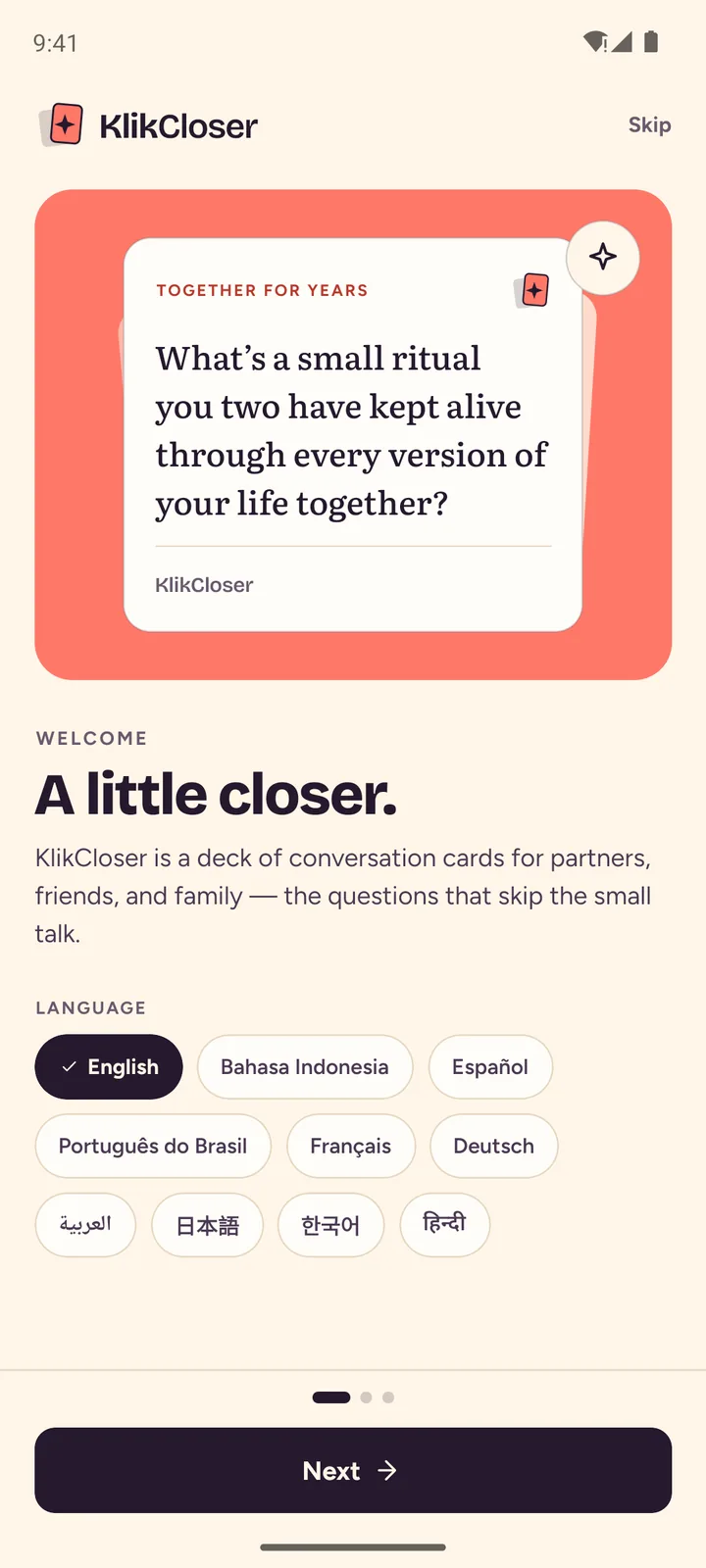
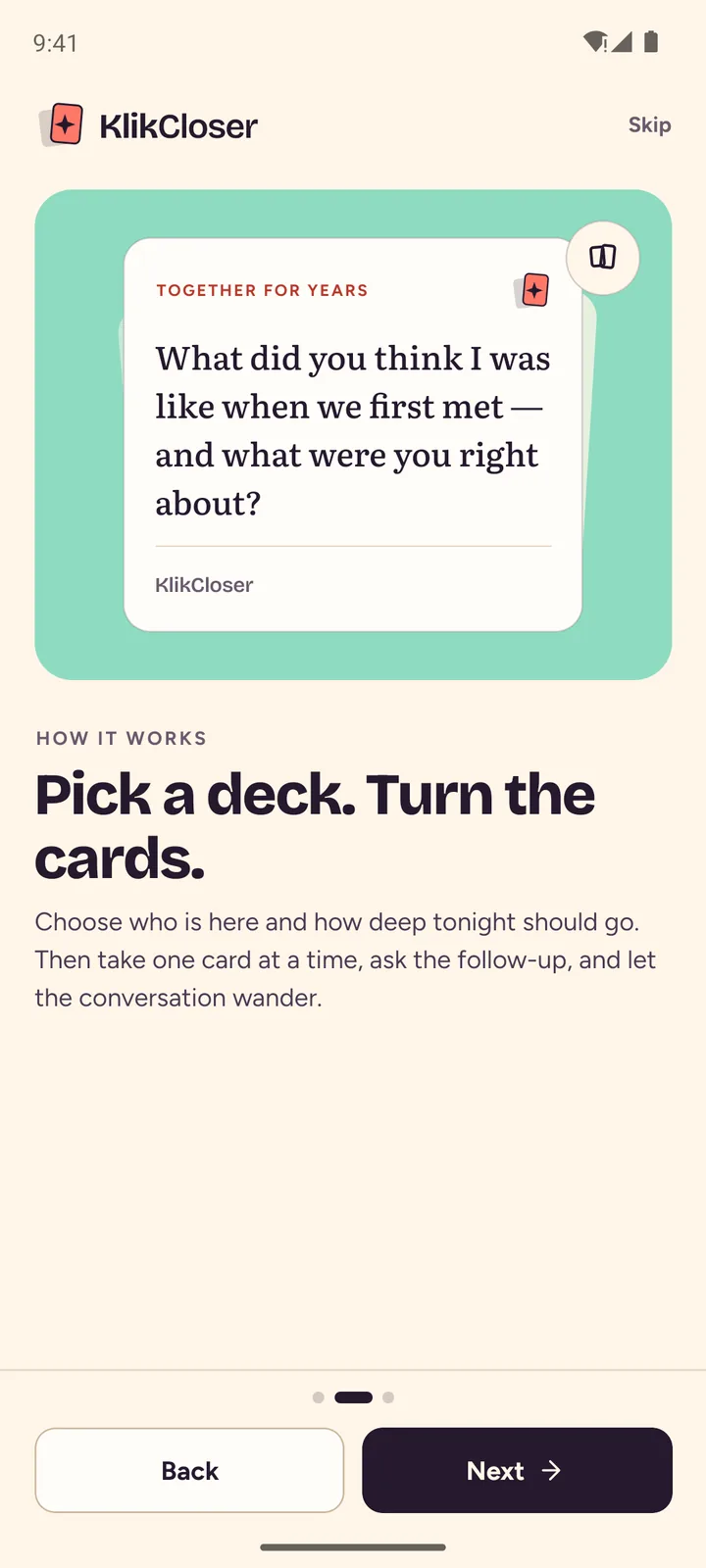
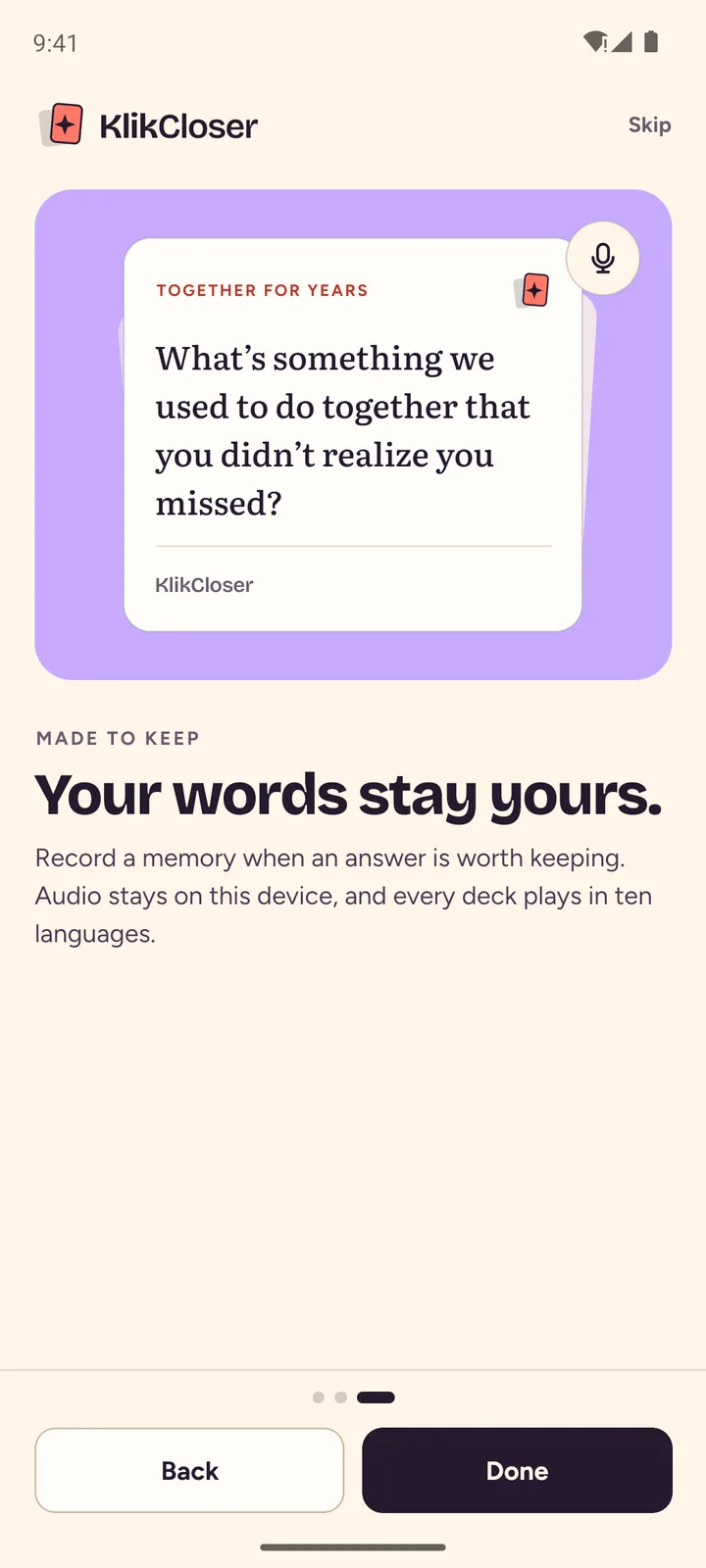
Three welcome screens set the tone. You can choose a language before you begin and replay everything later.
- Install KlikCloser from Google Play or the App Store, then open it.
- On the first screen, tap your language in the chip row.
- Tap Next through the three screens, then tap the last button.
- In a hurry? Tap Skip. You can replay these screens from Settings.
Your home screen
Everything starts here: the main session button, two shortcuts, tonight’s pick, and the card of the day.
- Tap Start a Session to choose who is with you and how deep the conversation should go.
- Use Quick Card for one question right now, or Guess My Answer for a pass-the-phone game.
- Scroll for the card of the day, then use the bottom bar to move between Home, Decks, Memories, Favorites, and Settings.
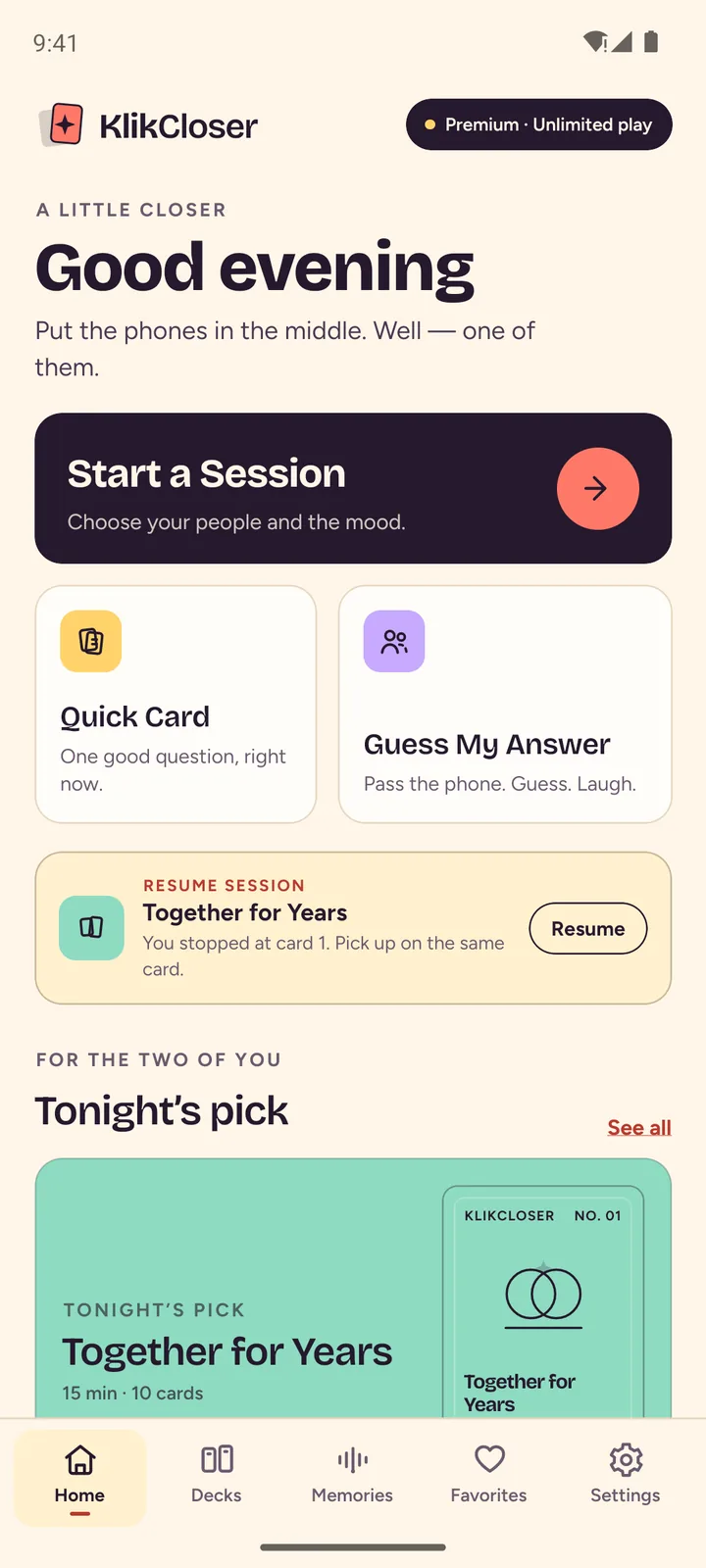
Tip. The pill in the top corner shows your plan. Tap it to compare free and Premium.
Choose your people and mood
KlikCloser suggests a deck from two choices: who you are with and how deep you want to go tonight.
- Tap Partner, Friends, or Family.
- Tap Light, Personal, or Deep.
- Check the suggested deck and its card count, then tap Start this session.
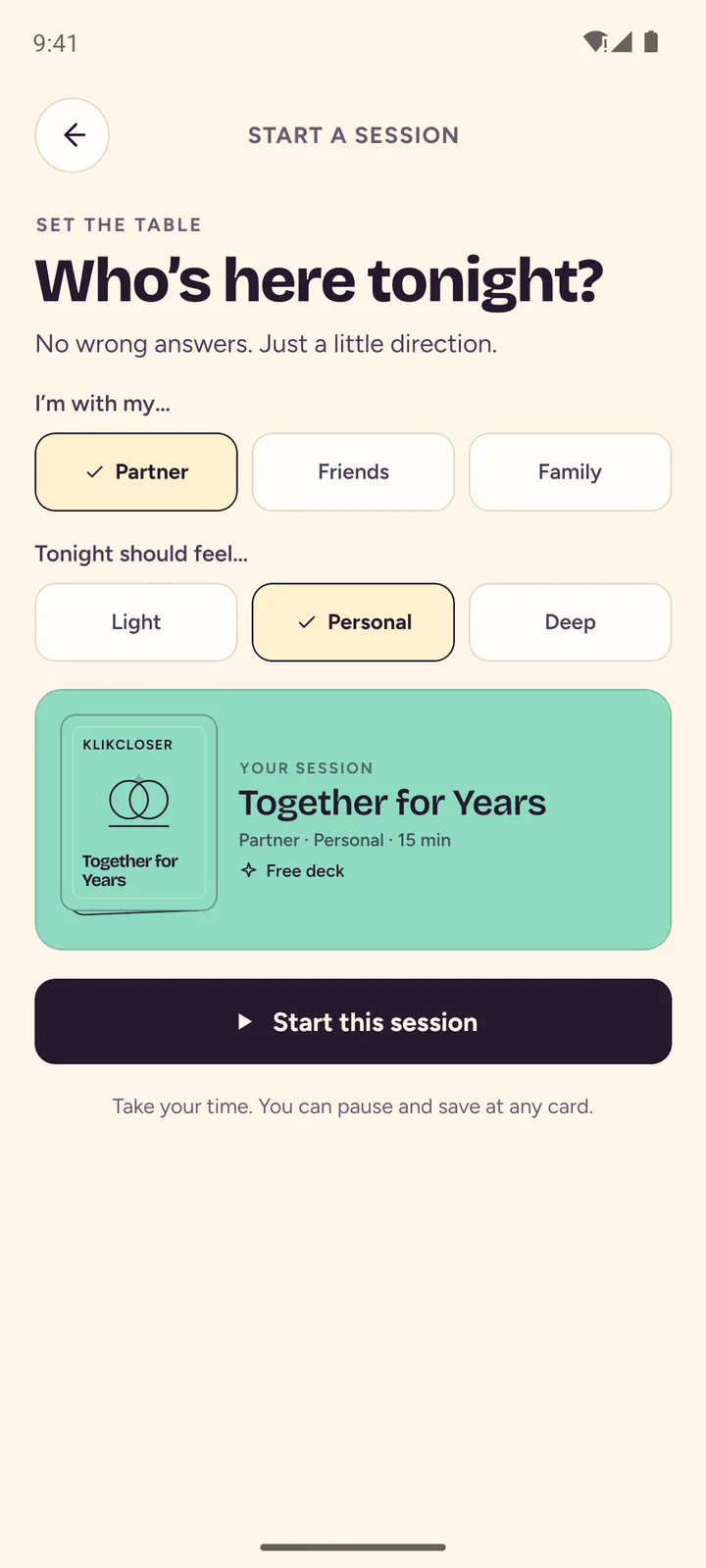
Tip. Change either choice and the recommendation updates immediately. You are never locked into the first suggestion.
One card at a time
Read the card out loud, let everyone answer, then move on. The progress line shows where you are in the deck.
- Read the question aloud. Keep the phone face up between you.
- Swipe the card, or tap Next card and Previous card to move through the deck.
- Tap Skip to pass a card, Favorite to keep it, or Share to send the question.
- Tap Record Memory when an answer deserves to be kept as audio.
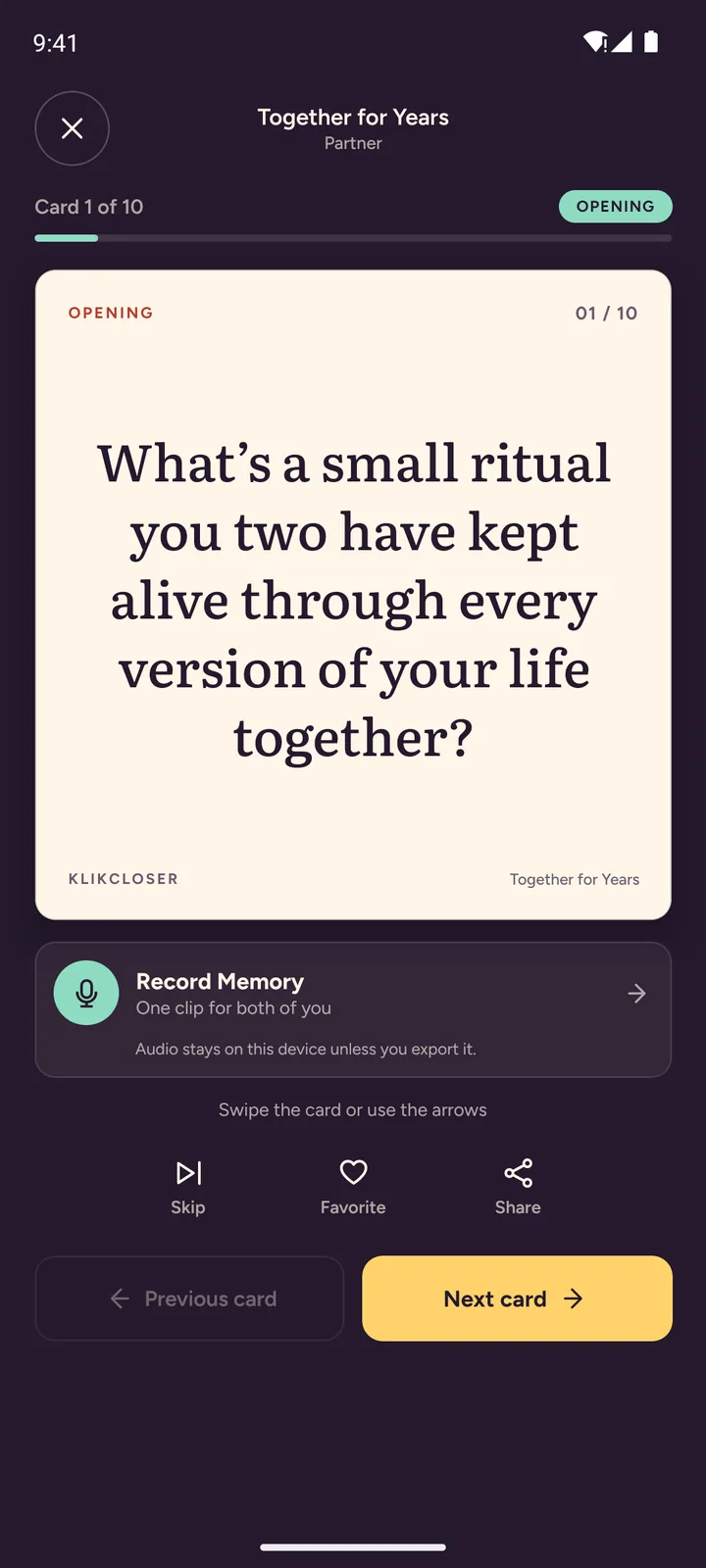
Tip. Close the session with the X at any time. Choose Save and exit and you will return to exactly this card later.
Close the session
End early or play to the last card. Either way you get a summary of what happened.
- Tap the X in the session, then choose End session.
- Read the summary: cards seen and cards kept.
- Tap Back home, or Choose another deck to keep going.
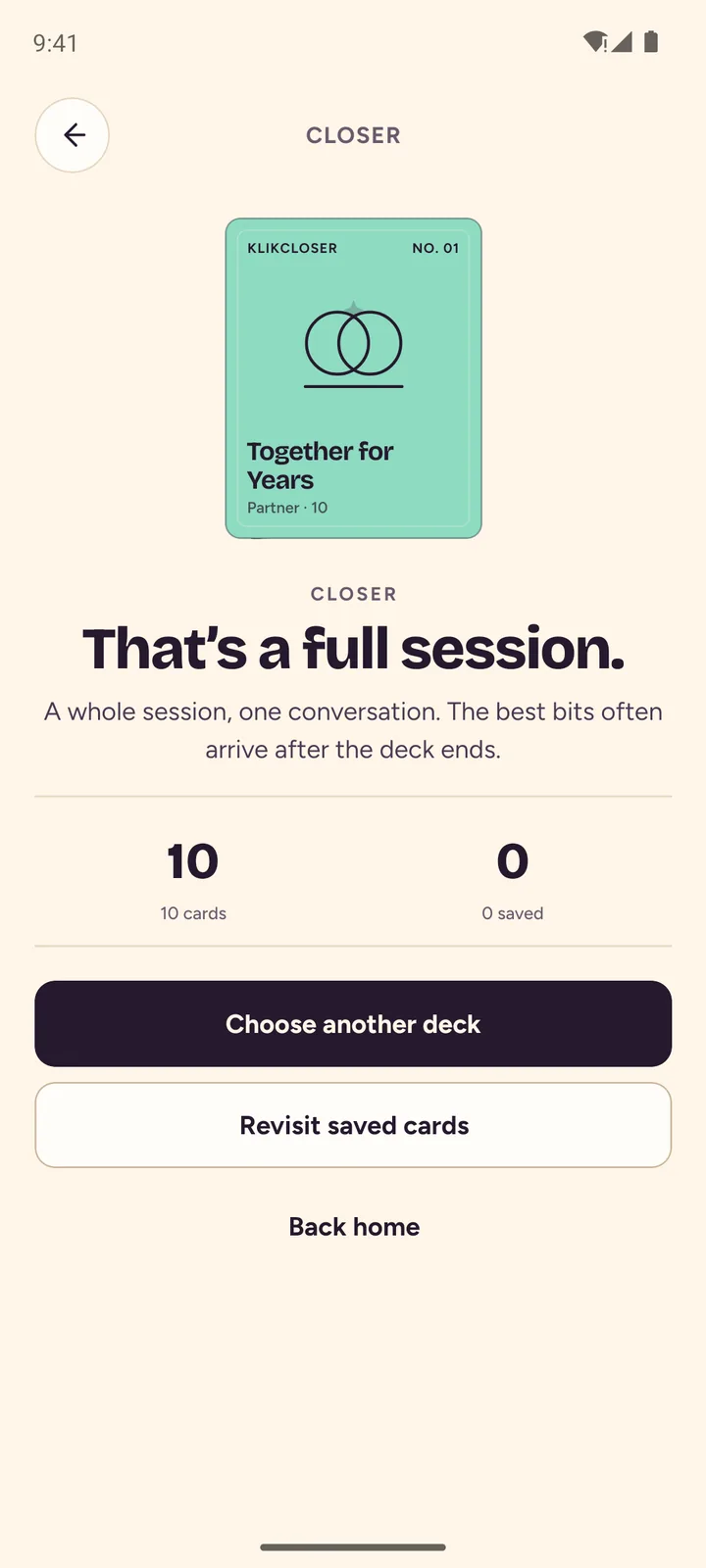
Tip. Sessions are stored on the device. A saved session picks up at the same card, even after you close the app.
Find the right deck
The Decks tab holds the library. Search by name or topic, or filter by companion and depth.
- Open Decks and type in the search field, or tap Filters.
- Tap a deck to open its detail page and read a sample card.
- Tap Start this deck when it feels right.
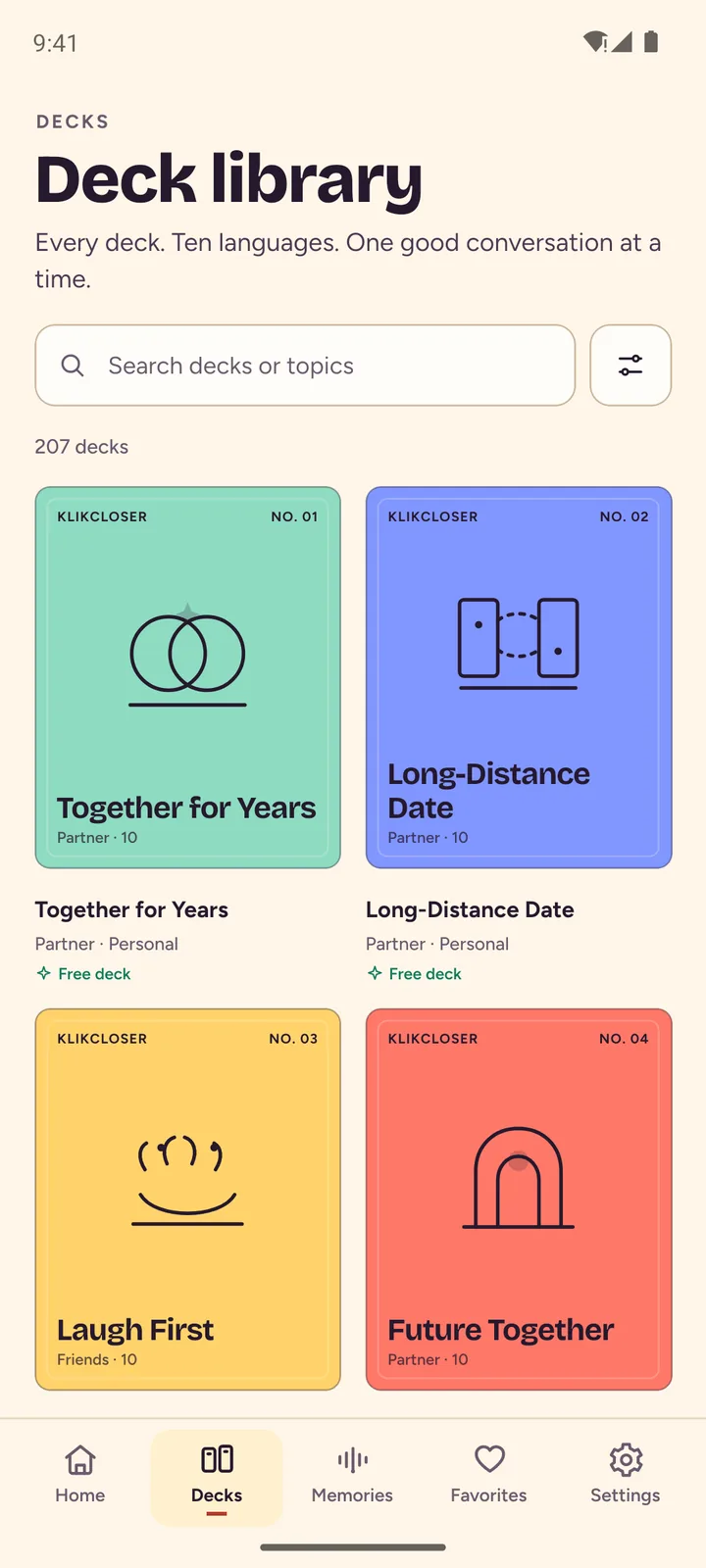
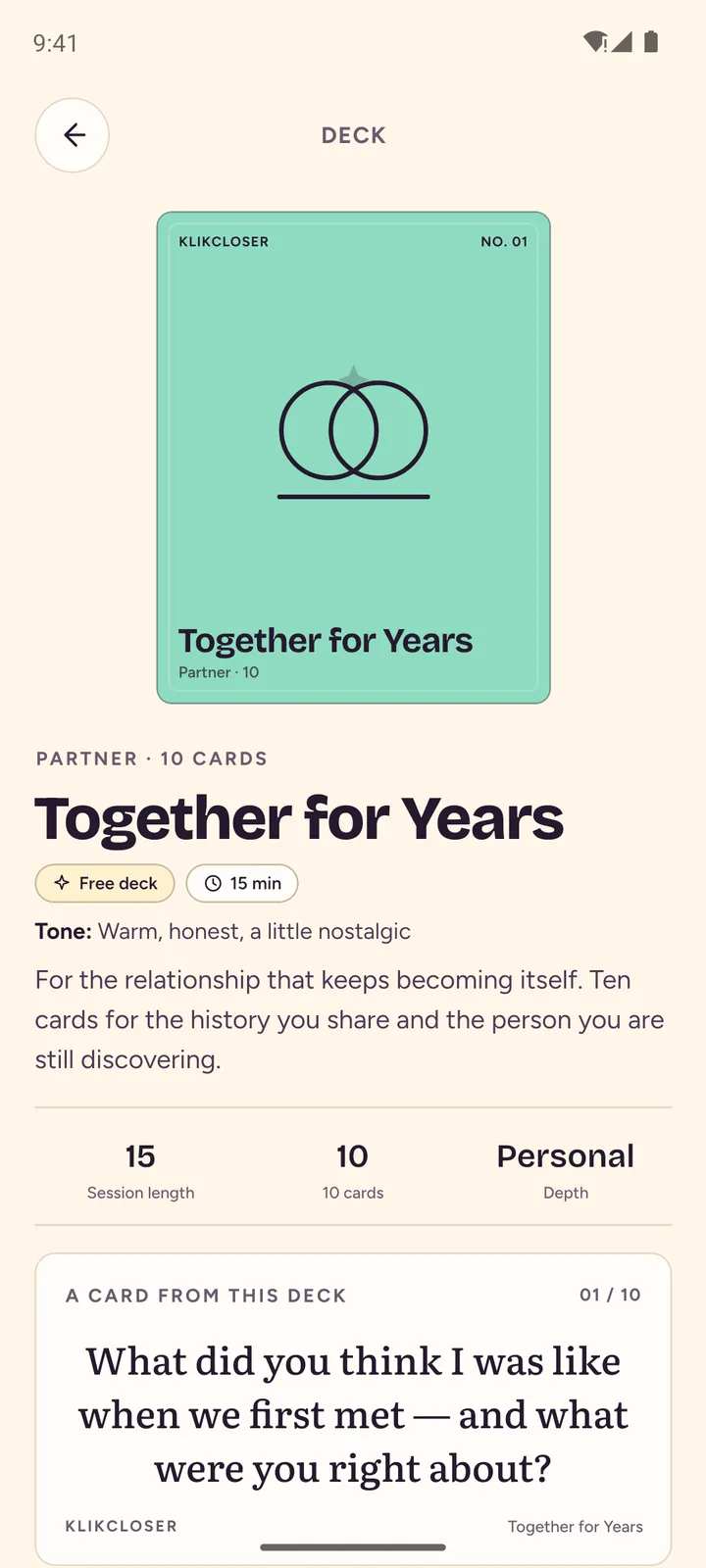
Tip. Free decks stay open every day. Premium decks are marked and unlock with a subscription.
Quick Card
One good question for the moments when a full session is too much.
- On Home, tap Quick Card.
- Read the question out loud.
- Tap Favorite to keep it, or Share to send it to someone.
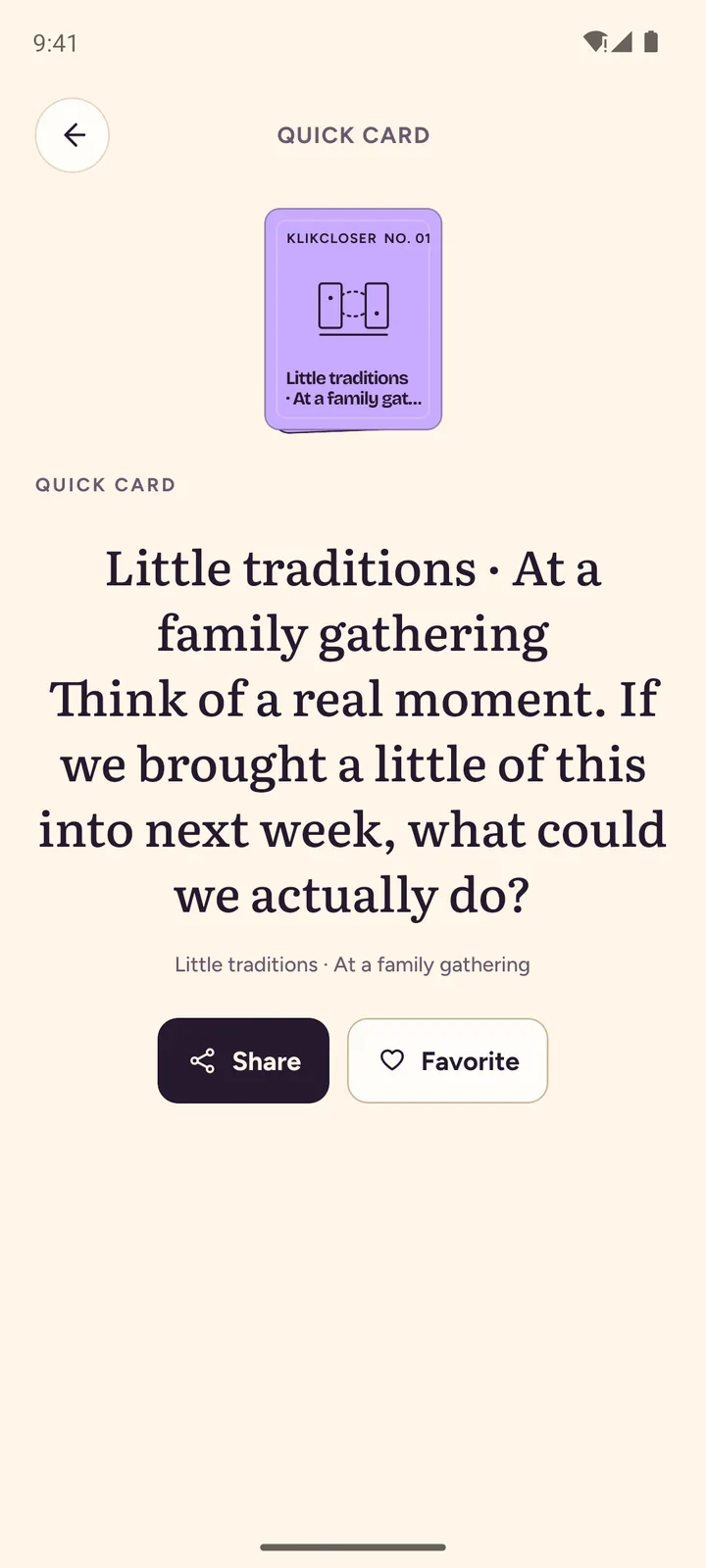
Tip. The card of the day on Home behaves the same way, and it changes daily.
Guess My Answer
One player answers in private. The other guesses. Then you compare answers and swap roles.
- Tap Guess My Answer on Home.
- Tap Play the sample round and answer privately on your turn.
- Hand the phone over face down, let the other player guess.
- Reveal both answers, then swap roles and play the same prompt again.
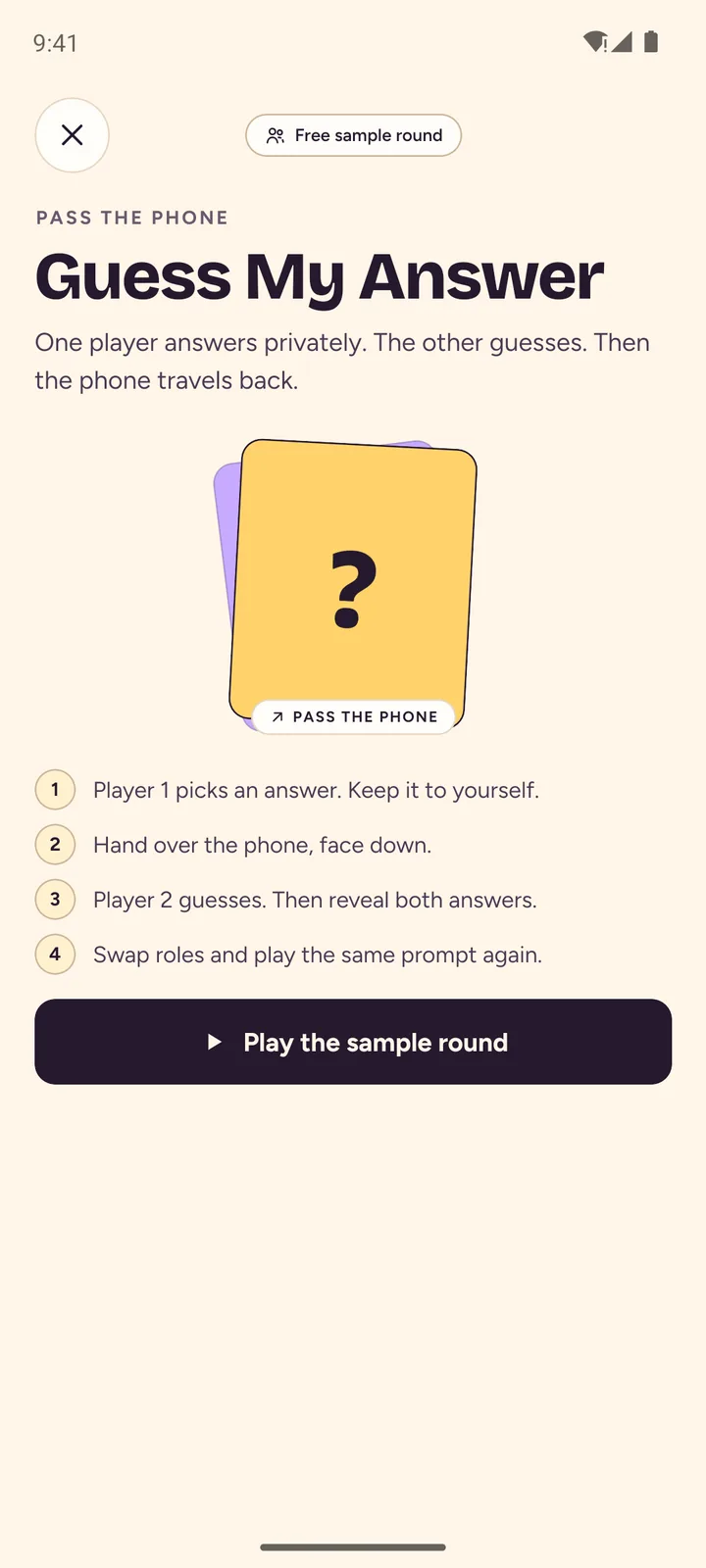
Tip. The first round is free. Answers are not uploaded anywhere; the comparison happens on the phone.
Keep an answer
Audio memories hold the answer and the question together. They stay on this phone unless you export them.
- In a session, tap Record Memory.
- Confirm that everyone agrees to be recorded, allow the microphone if asked, then tap Start recording.
- Tap Stop, listen once, add a title if you like, then tap Save memory.
- Open Memories to replay, rename, share, export, or delete the clip.
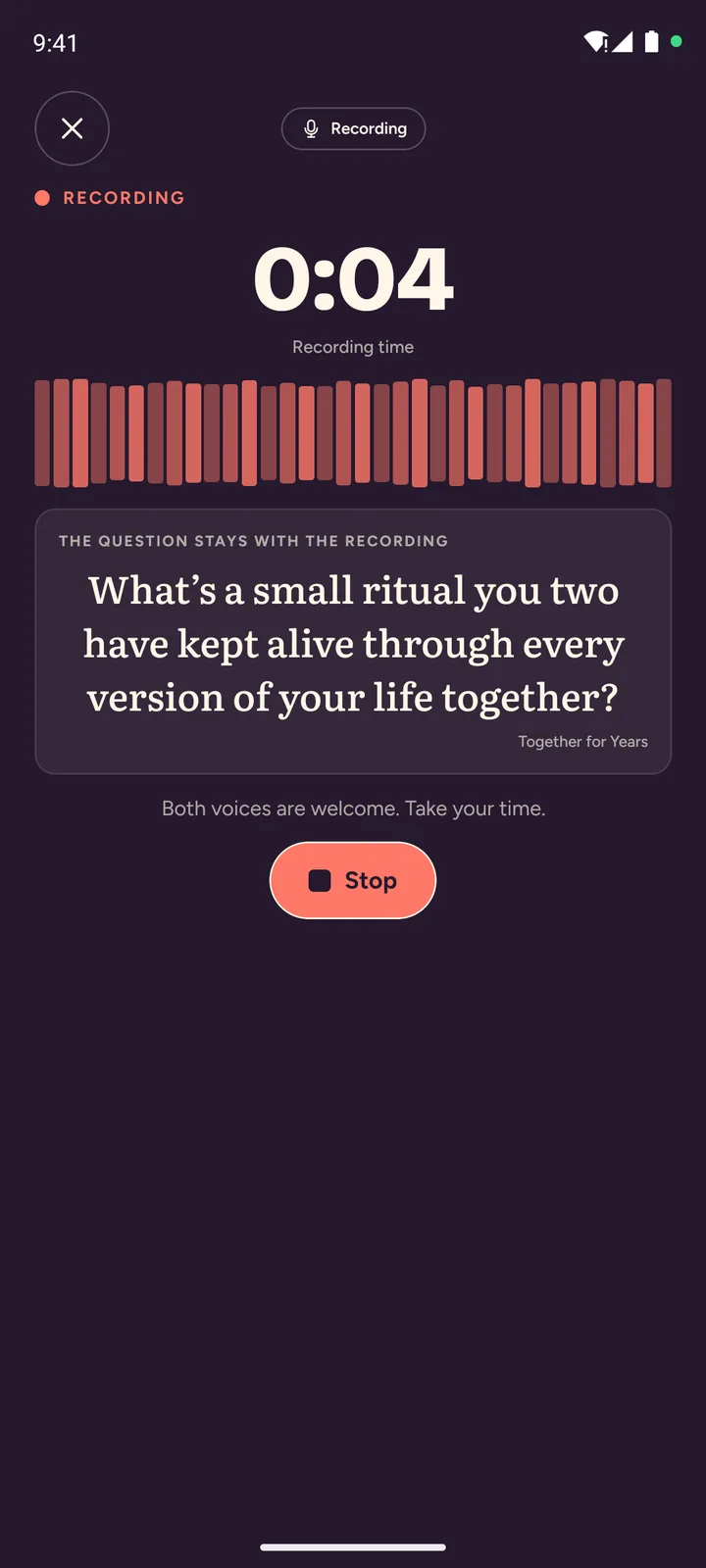
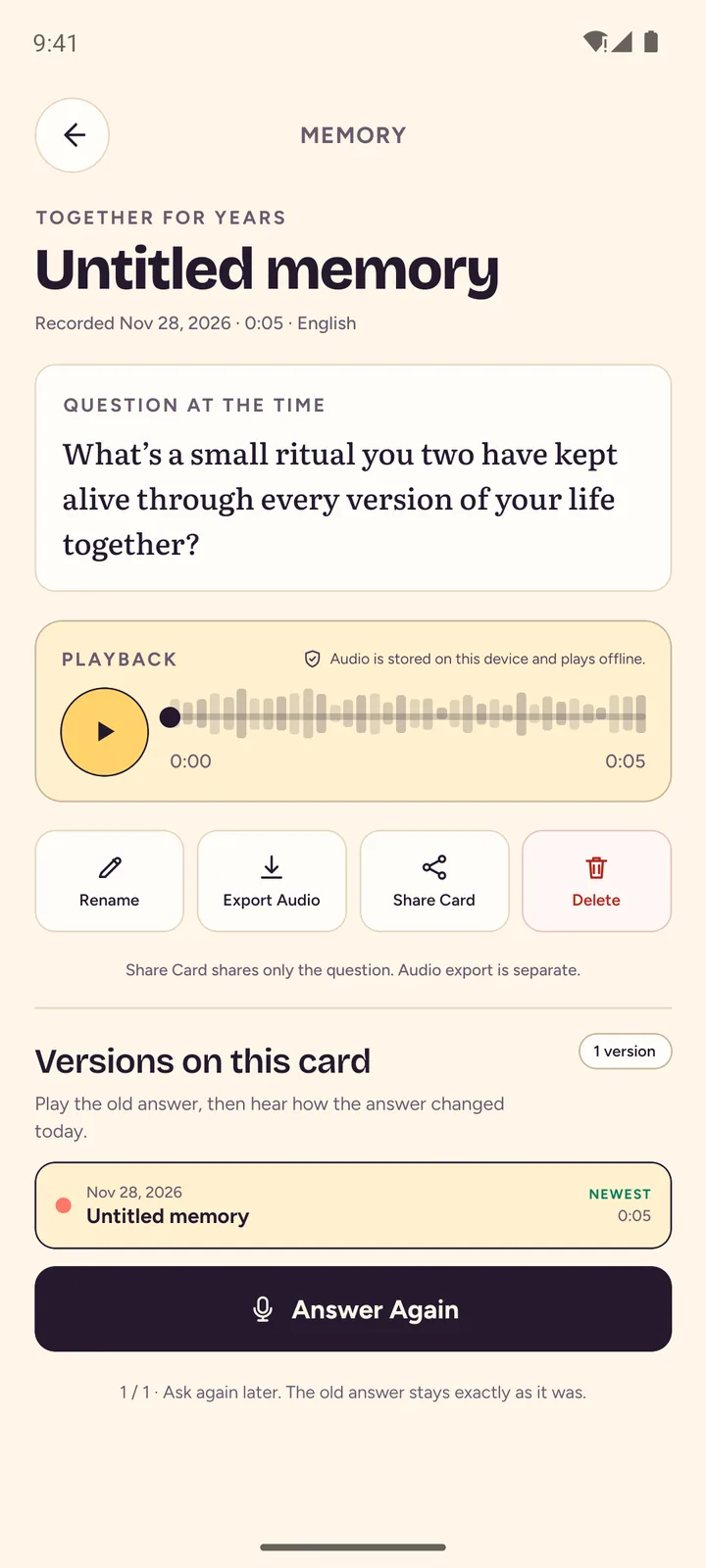
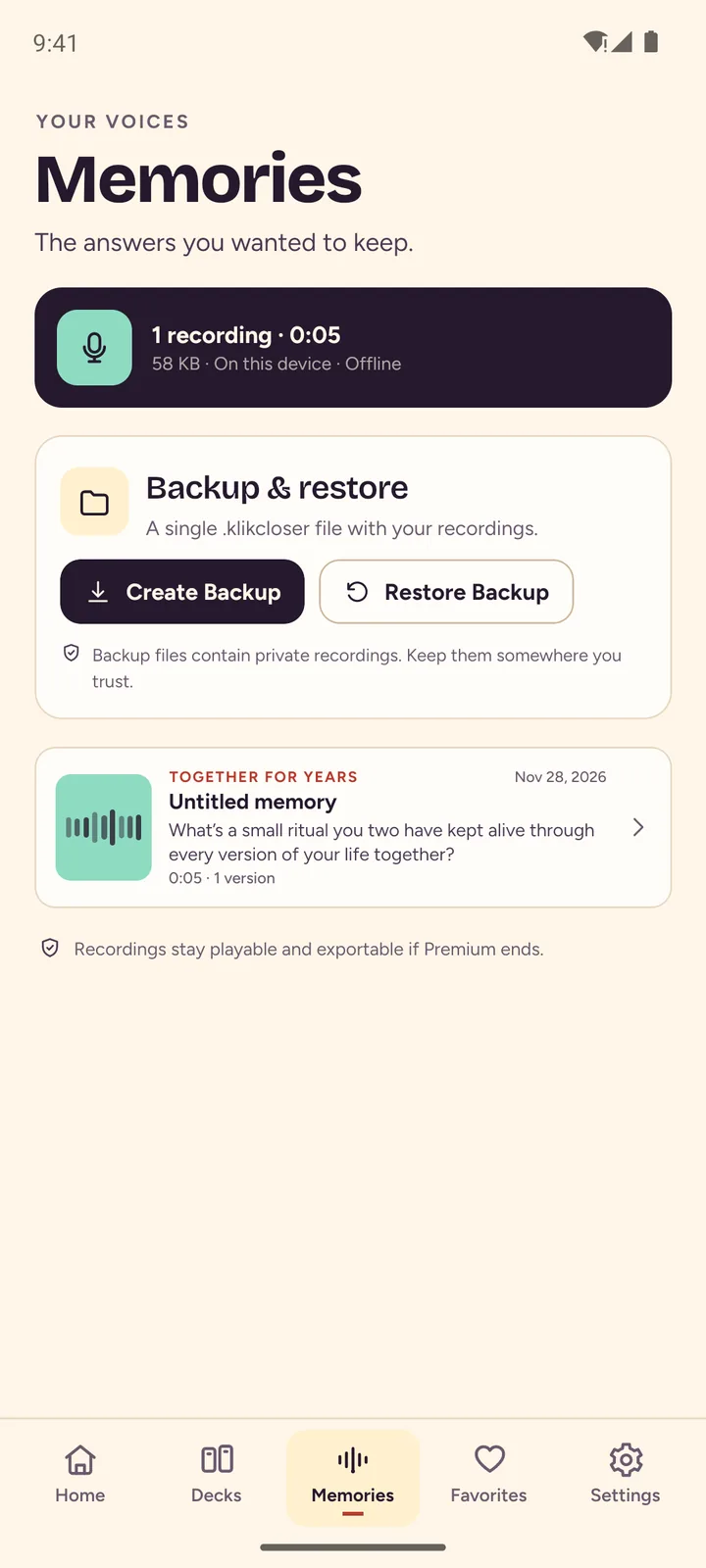
Tip. Answer Again adds a new version to the same card. The old answer stays exactly as it was. Use Backup & restore in Memories to create one .klikcloser file you can move to another phone.
Your keeps
Cards you starred live in one place, ready to reread or share.
- Tap Favorite on any card in a session or in Quick Card.
- Open Favorites in the bottom bar.
- Tap a card to read it again, share it, or remove it from favorites.
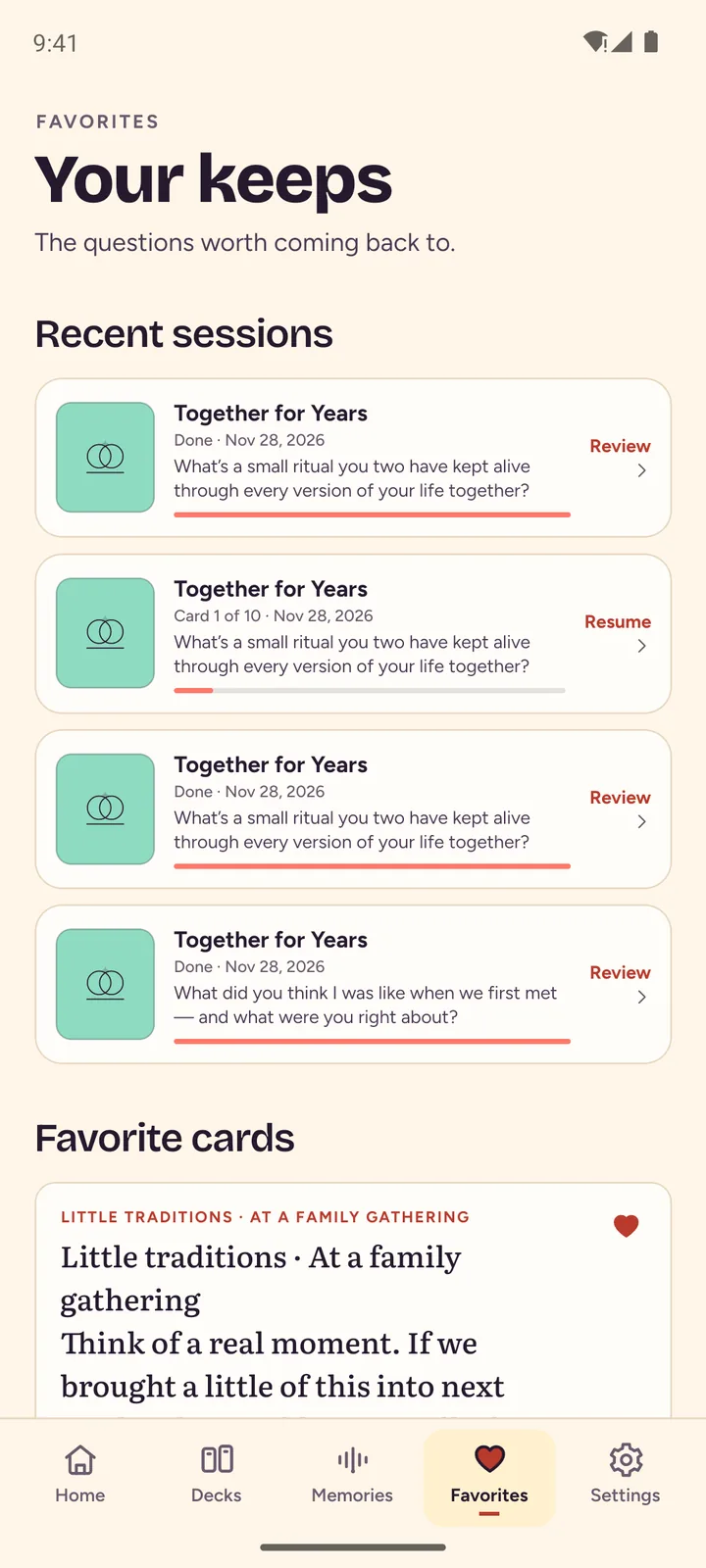
Tip. Favorites follow the card, not the language. Switch language and the same saved card appears in the new language.
Free and Premium
Free gives you a daily allowance of new cards. Premium removes the limit and the banner ads, and opens every deck.
- Tap the plan pill on Home, or See Premium options in Settings.
- Choose Monthly or Lifetime and confirm in the store sheet.
- On a new device, open Settings and tap Restore Purchases with the same store account.
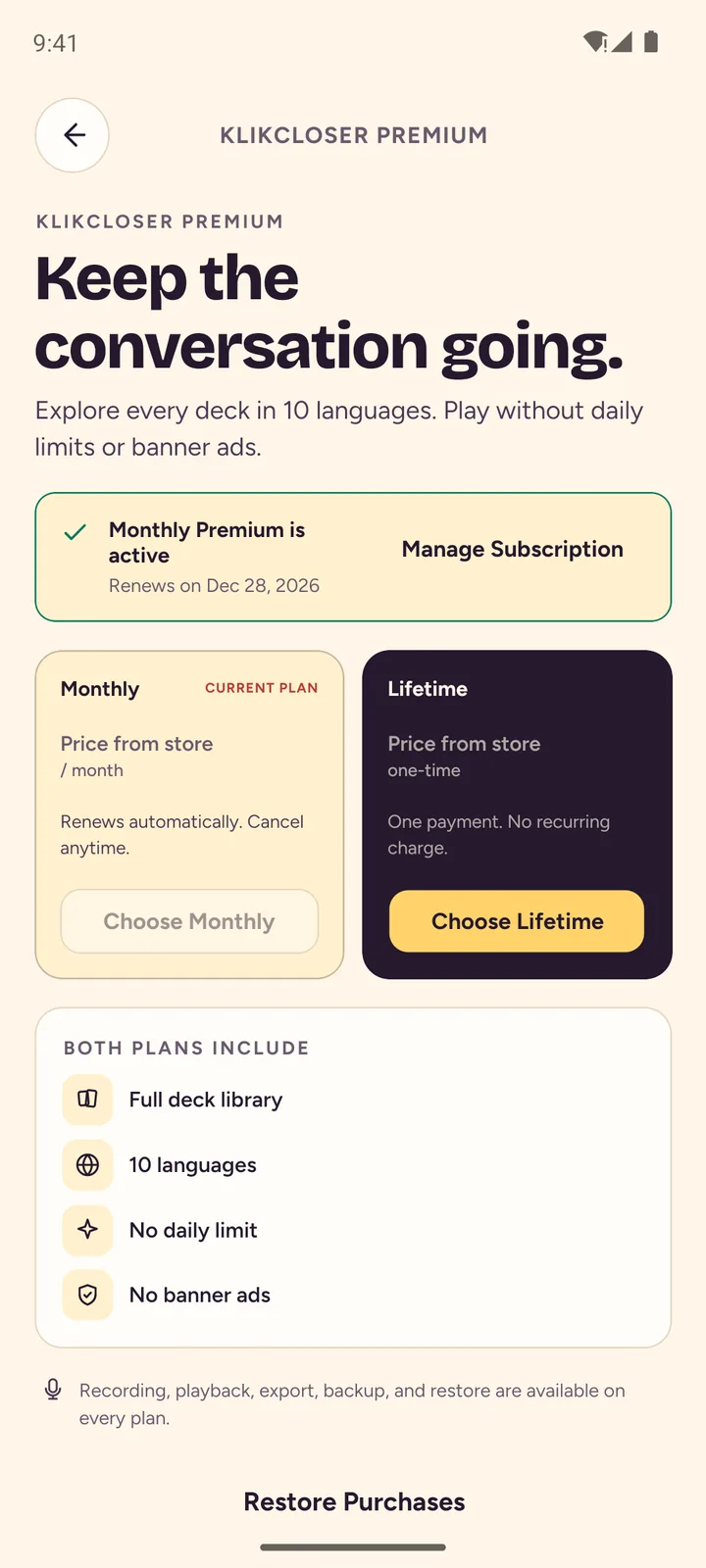
Tip. Recording, playback, export, backup, and memories are never gated by Premium. Only new cards and ads change.
Language, privacy, and the fine print
One screen for your plan, the language of every screen and deck, ad privacy, and the app version.
- Open Settings from the bottom bar.
- Scroll to Language and tap a native name.
- Use Getting started to replay onboarding or the interactive guide.
- Open Ad privacy options to review consent for banner ads.
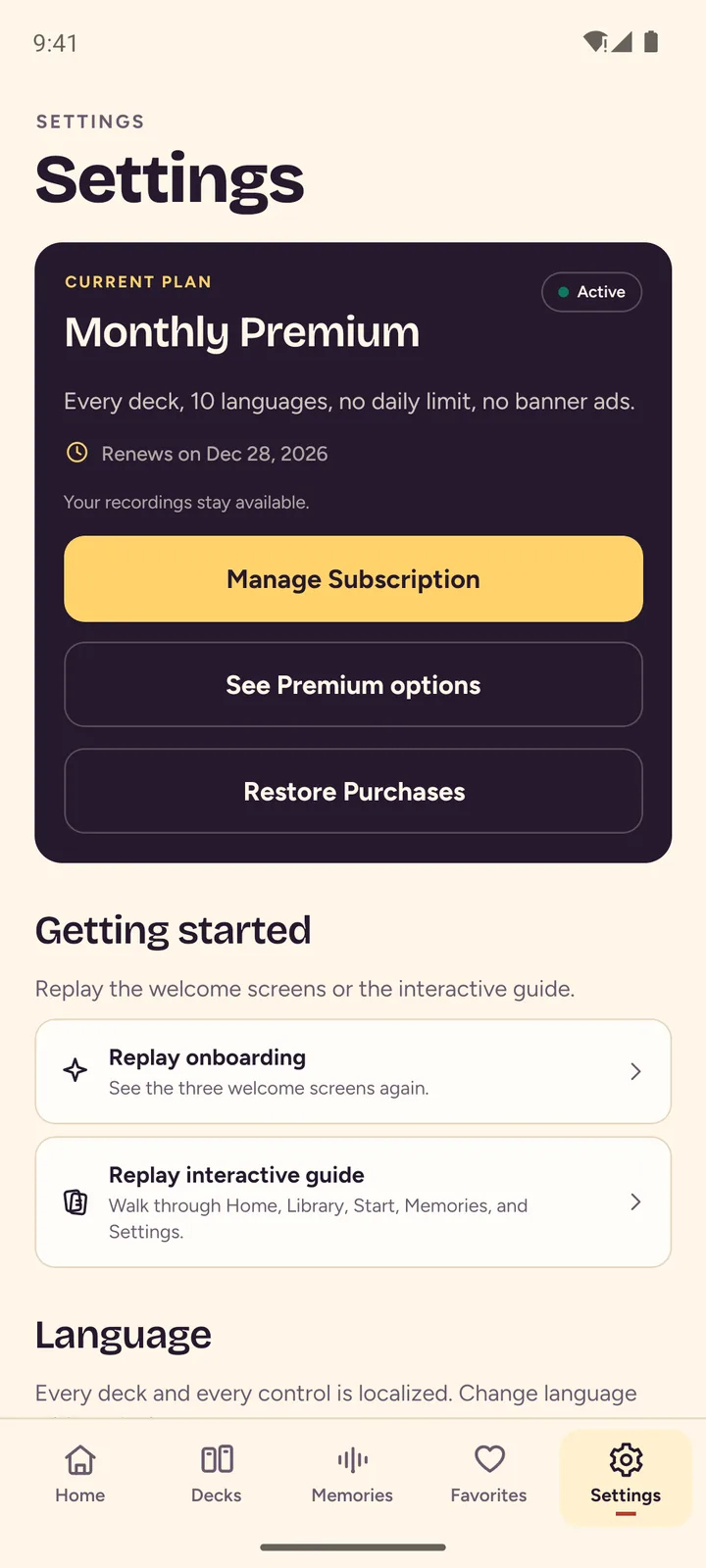
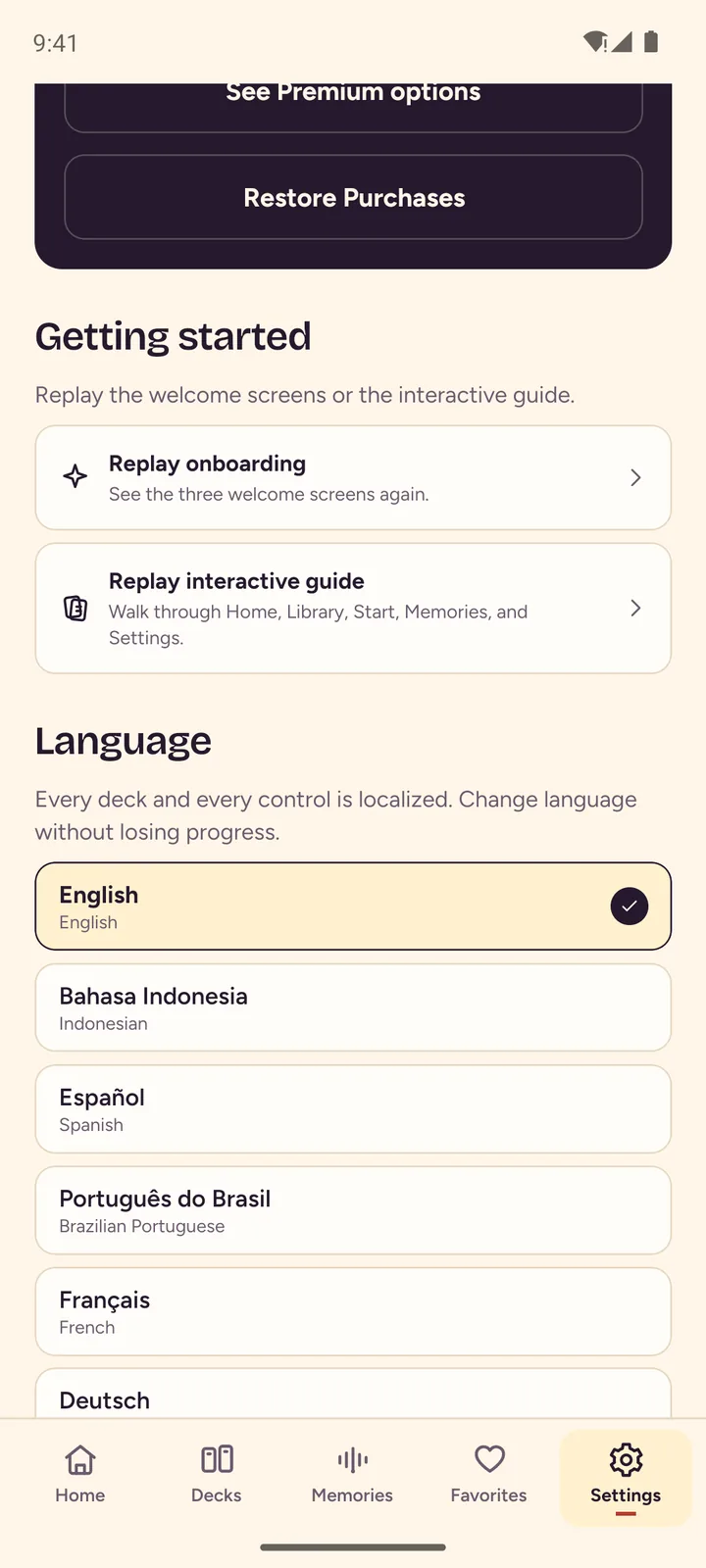
Tip. The app follows the language you pick here, not the phone language. Arabic also mirrors the layout to right-to-left.
FAQ
Do I need an account?
No. KlikCloser opens straight into the app. Progress, favorites, sessions, and recordings are stored on your device.
How many cards are free each day?
Free includes ten new cards per day. Cards you have already opened stay available, so revisiting a deck never costs an allowance.
Are my recordings uploaded?
No. Audio is written to the app’s local storage. It leaves the phone only when you export a clip or create a backup file and share it yourself.
Does it work offline?
Yes. Decks, sessions, favorites, recording, and playback work without a connection. Purchases, restore, and ads need the internet.
Can I change the language without losing progress?
Yes. Go to Settings, then Language. Sessions, favorites, and the daily allowance are kept, and card IDs stay the same across languages.
How do I restore Premium on a new phone?
Install the app, sign in to the same Google Play or App Store account, open Settings, and tap Restore Purchases.
How do I back up my memories?
Open Memories, find Backup & restore, and tap Create Backup. You get one .klikcloser file containing a manifest and the audio clips. Restore validates the file and merges by recording ID, so importing twice does not create duplicates.
The microphone is not working. What now?
Allow microphone access when prompted. If you declined earlier, enable it in the system settings for KlikCloser, close other apps that use the microphone, and try again.
Ready to get a little closer?
Put the phone between you, pick a deck, and read the first card out loud. That is the whole trick.